JPG vs PNG vs WebP: Which Image Format Should You Use?
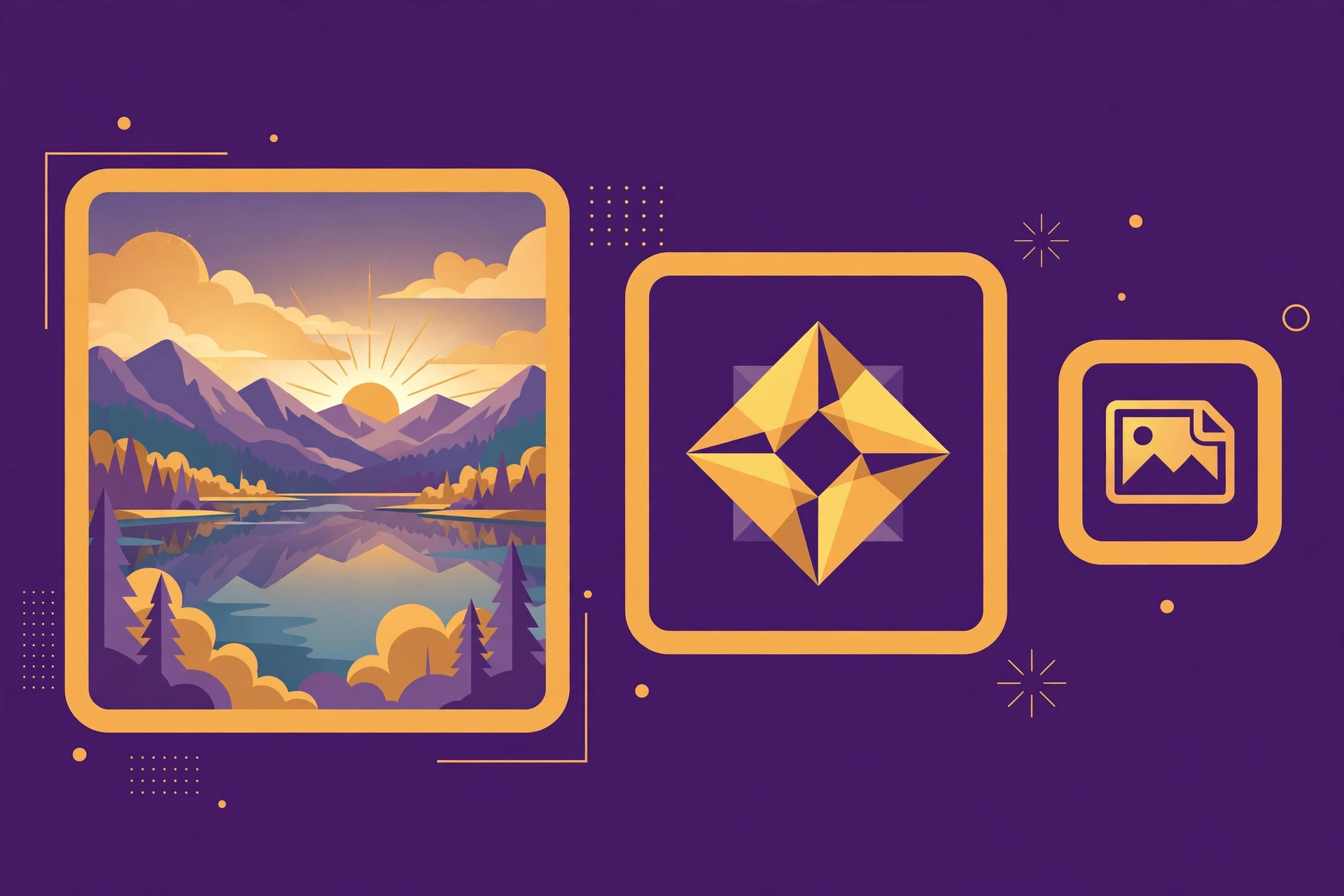
You save a photo, and the website asks you to choose: JPG, PNG or WebP. Pick the wrong one and your picture either looks blurry, loads slowly, or ends up ten times bigger than it needs to be. The good news is that the choice is simpler than it looks. Each format was designed for a different job, and once you know what each one does best, you will rarely hesitate again.
What each format actually does
JPG (also written JPEG) is the classic photo format. It uses lossy compression, which means it throws away some picture detail to shrink the file. For photographs, that trade is usually invisible: a JPG at good quality looks identical to the original while taking a fraction of the space. The weakness is sharp edges and text. Compress a logo or a screenshot as a JPG and you get fuzzy halos around the edges. JPG also cannot store transparency, so any transparent area becomes white.
PNG uses lossless compression: it never throws away detail. That makes it perfect for logos, icons, screenshots, diagrams and anything with sharp lines or text. It also supports transparency, so a logo can sit cleanly on any background colour. The price is file size. A PNG photograph can be several times larger than the same photo as a JPG, which is why PNG is a poor choice for camera photos on the web.
WebP is the modern format built for the web. It can do both jobs: lossy compression like JPG for photos, and lossless compression with transparency like PNG for graphics. In practice, a WebP photo is usually noticeably smaller than the equivalent JPG at the same visible quality, and a WebP graphic is smaller than the equivalent PNG. The only real catch is older software: very old browsers and some older apps cannot open WebP files, although every current browser handles it fine.
A quick comparison
- Photographs: WebP first, JPG second. Both keep photos small and sharp; WebP is usually smaller.
- Logos, icons and graphics: PNG first, WebP second. PNG is universally supported and keeps every edge crisp, and WebP matches it with smaller files where supported.
- Screenshots and text-heavy images: PNG. Lossy formats blur small text; lossless keeps it readable.
- Transparency: PNG or WebP. JPG cannot do it at all.
- Smallest file size: WebP, in almost every test.
- Widest compatibility: JPG for photos, PNG for graphics. Every device and app made in the last twenty years opens both.
Method 1: Convert between formats in your browser (fastest)
You do not need to install anything or upload your pictures to a server to switch formats. Our free Image Converter converts JPG, PNG, WebP, GIF and BMP entirely in your browser, so your images never leave your device. Here is how to use it:
- Click “Choose an image” and pick the file you want to convert.
- Pick the output format: PNG for crisp graphics and transparency, JPG for photos and smaller files, or WebP for a modern, compact format.
- Set the quality slider for JPG and WebP. Around 85 to 90 percent is the sweet spot for most photos: much smaller than 100 percent, with no visible difference.
- Click “Convert image”, check the preview, and download the result.
- If the result still looks too big, run it through our image compression guide’s tool afterwards — converting and then compressing often beats either step alone.
There is no signup, no watermark and no limit on how many images you convert.
Method 2: Choose the right format before you export
If you are saving an image from an editor or a design app, choosing the format at export time saves a conversion step later. Export photographs from your camera or editor as JPG at 80 to 90 percent quality, or as WebP if your audience uses modern browsers. Export logos, icons and illustrations as PNG so edges stay sharp and transparency survives. Export screenshots as PNG too, because JPG compression makes small on-screen text harder to read.
Common problems — and what to do
- Your logo has a white box around it: You saved it as a JPG, which cannot store transparency. Convert the original to PNG or WebP instead.
- Your photo looks blurry after saving: You probably saved a JPG at very low quality, or converted a PNG photo to JPG with the slider too low. Re-export from the original at 85 percent or higher.
- Converting to PNG made the file bigger: That is normal for photographs. PNG is lossless, so a detailed photo becomes a huge PNG. Use JPG or WebP for photos.
- An old app cannot open your WebP: Convert that copy back to JPG or PNG with the converter above. Keep the WebP for the web and the JPG or PNG for sharing.
- Text in your screenshot looks fuzzy: JPG compression is the culprit. Re-capture or re-export as PNG, which keeps text sharp.
- Your page still loads slowly after converting: Format is only half the story. Resize oversized images to the dimensions they are actually displayed at, then compress them.
Tips for the best results
- Always convert from the best original. Converting a low-quality JPG to PNG will not restore lost detail, so start from the highest-quality version you have.
- Match the format to the job, not the habit. Saving everything as JPG because it is familiar is how logos end up with white boxes and screenshots end up unreadable.
- Test the quality slider. Dropping JPG quality from 95 percent to 85 percent often halves the file size with almost no visible difference.
- Keep a copy of the original. Conversion changes the file format, so keep the original in case you need a different format later.
Frequently asked questions
Which is better, JPG or PNG?
Neither is better overall — they suit different jobs. JPG is better for photographs because it keeps files small with no visible quality loss. PNG is better for logos, icons, screenshots and anything with sharp edges or transparency, because it is lossless and preserves every detail.
Is WebP better than JPG and PNG?
For the web, usually yes. WebP photos are typically smaller than JPG at the same visible quality, and WebP graphics are typically smaller than PNG while also supporting transparency. The only drawback is compatibility with very old browsers and apps, which is rarely a problem today.
Does converting JPG to PNG improve quality?
No. Converting to PNG cannot restore detail that JPG compression already threw away. It only makes the file bigger. Always convert from the highest-quality original you have, and choose PNG at export time if you need lossless quality.
Why does my JPG logo have a white background?
JPG cannot store transparency, so any transparent area is filled with white when the file is saved. Save or convert the logo as PNG or WebP instead, and the transparent background will be preserved.
What quality setting should I use for JPG and WebP?
Around 85 to 90 percent is the sweet spot for most photos. It usually halves the file size compared with 100 percent while looking identical on screen. For graphics with text, use PNG instead of a low-quality JPG.
The short answer
Use JPG for photographs, PNG for logos, icons, screenshots and anything needing transparency, and WebP when you want the smallest file that still looks great on the modern web. When you need to switch, the free Image Converter does it in your browser with no signup and no uploads.