How to Convert PNG to JPG (Smaller Files, Same Photo)
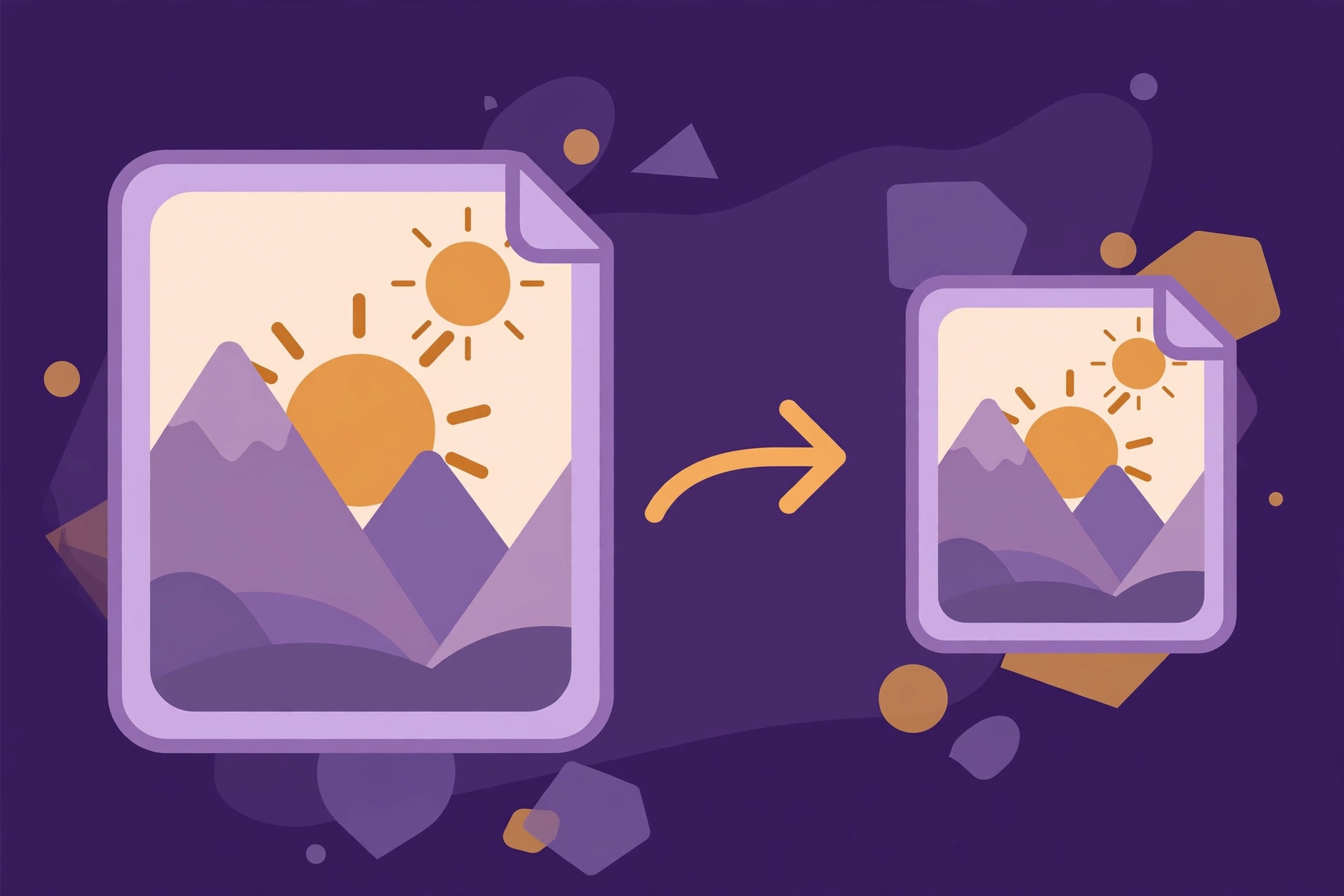
A PNG screenshot can weigh 4 MB while the same photo as a JPG is 400 KB — ten times smaller, with no visible difference. That is why converting PNG to JPG is one of the most useful image tricks there is: smaller files upload faster, email easier, load quicker on a website, and fit the size limits of forms and apps.
The catch is that JPG cannot do everything PNG can. This guide explains when converting makes sense, how to do it free in your browser without uploading anything, and what happens to transparency and quality along the way.
When should you convert PNG to JPG?
Convert to JPG when the image is a photo or a realistic picture — a camera photo, a screenshot of a photo, a scanned document, a product picture. JPG’s compression is designed for exactly this kind of image, and it squeezes photos down to a tenth of their PNG size with no visible loss.
Keep the PNG when the image is a graphic with sharp edges and flat colours — a logo, an icon, a chart, a diagram, or text on a plain background. JPG blurs sharp edges and adds faint smudges around text, so graphics look worse as JPG and barely shrink at all.
The simple rule: photos → JPG, graphics → PNG. If you are unsure, convert a copy and zoom in — the difference is obvious at 100% magnification.
How to convert PNG to JPG free (no upload)
Converting in your browser takes under a minute:
- Open the free Image Converter — no sign-up, and your image never leaves your computer.
- Choose your PNG file from your computer or phone.
- Select JPG as the output format.
- Convert and download the new JPG file.
That is the whole process. Because the conversion runs in your browser, there is no upload queue, no waiting, and no copy of your image stored on a server — which matters if the photo is private.
If you need to change a JPG back to PNG, or convert between other formats, the same tool handles JPG, PNG, WebP, GIF and BMP. For the full picture of when each format wins, see JPG vs PNG vs WebP: Which Image Format Should You Use?.
What happens to transparency?
This is the one thing that catches people out: JPG does not support transparency. A PNG with a transparent background — a logo, a product cut-out, a sticker — has see-through areas. When you convert it to JPG, those see-through areas have to become a solid colour, and the converter fills them with white by default.
So before converting, ask one question: does this image rely on transparency? If the answer is yes — a logo that must sit on a coloured background, a watermark, a cut-out product photo — keep it as PNG. If the image is a full photo with no transparent areas, the conversion is safe and nothing is lost.
What happens to quality?
JPG uses lossy compression: it throws away image detail the human eye barely notices in order to shrink the file. At high quality settings (85–95%), the result looks identical to the PNG for a photo. At low settings (50–60%), you start to see blocky patches in smooth areas like skies, and smudges around sharp edges.
Two practical tips:
- Convert once, from the original PNG. Every time a JPG is saved again it loses a little more detail. Keep the original PNG as your master copy, and make a fresh JPG from it whenever you need one.
- Never convert a JPG back to PNG to “restore” quality. The detail JPG threw away is gone forever; the PNG you get back is just a bigger file holding the same degraded image.
How much smaller will the file get?
It depends on the image, but photos are where the savings are dramatic:
- A phone photo saved as PNG: often 3–8 MB. As a JPG at good quality: 300–800 KB — roughly 90% smaller.
- A screenshot of a photo or video: often 1–3 MB as PNG, 100–300 KB as JPG.
- A screenshot of text or a diagram: barely shrinks at all, and looks worse — keep it as PNG.
- A scanned document: usually 50–70% smaller as JPG, and perfectly readable.
If a file barely shrinks after conversion, that is the image telling you it was never a good JPG candidate. Keep the PNG.
Common problems — and what to do
- The converted JPG has a white box around the subject: the original PNG had transparency. Either keep the PNG, or place the subject on a background colour you actually want before converting.
- The JPG looks blurry or blocky: the quality setting was too low, or the image was already a JPG that had been compressed several times. Convert again from the original PNG at a higher quality.
- The file is still too big for a form or upload limit: try converting at a slightly lower quality, or resize the image to smaller dimensions first — a 4000-pixel photo does not need to be 4000 pixels wide for a web form.
- The converter says the file is not a PNG: check the file extension. Some files are named
.pngbut are actually JPGs (or WebP) inside. Opening the file and re-saving it with the right extension fixes it. - Colours look slightly different after conversion: JPG and PNG handle colour profiles slightly differently. For everyday photos the difference is invisible; for print work, keep the PNG or work from the original file.
Frequently asked questions
How do I convert PNG to JPG for free?
Open the free Image Converter on this site, choose your PNG file, select JPG as the output, and download the result. It runs in your browser — no sign-up, no upload, and nothing is stored on a server.
Does converting PNG to JPG reduce quality?
Slightly, but for photos the loss is invisible at normal quality settings. JPG uses lossy compression, so keep your original PNG as a master copy and always convert fresh from it rather than re-saving a JPG again and again.
What happens to a transparent background when converting to JPG?
JPG does not support transparency, so transparent areas become solid white by default. If your image needs transparency — a logo, a cut-out, a sticker — keep it as PNG.
Is JPG or PNG better for photos?
JPG is better for photos: it makes files up to 90% smaller with no visible difference. PNG is better for graphics, logos and anything with transparency, where JPG’s compression blurs sharp edges.
How much smaller is a JPG than a PNG?
For a typical phone photo, a JPG is roughly 80–90% smaller than the same image as a PNG. For graphics and screenshots of text, the saving is small or none at all.
The short answer
For photos, converting PNG to JPG is a clear win: up to 90% smaller files, no visible quality loss, and the conversion takes seconds with the free Image Converter. Just remember the two rules — keep the original PNG as your master copy, and never convert an image that needs transparency.